Adding a chemical structure
There are three ways to add a chemical structure in NMRium: drag and drop a molfile, paste a molfile or SMILES, or edit the structure directly.
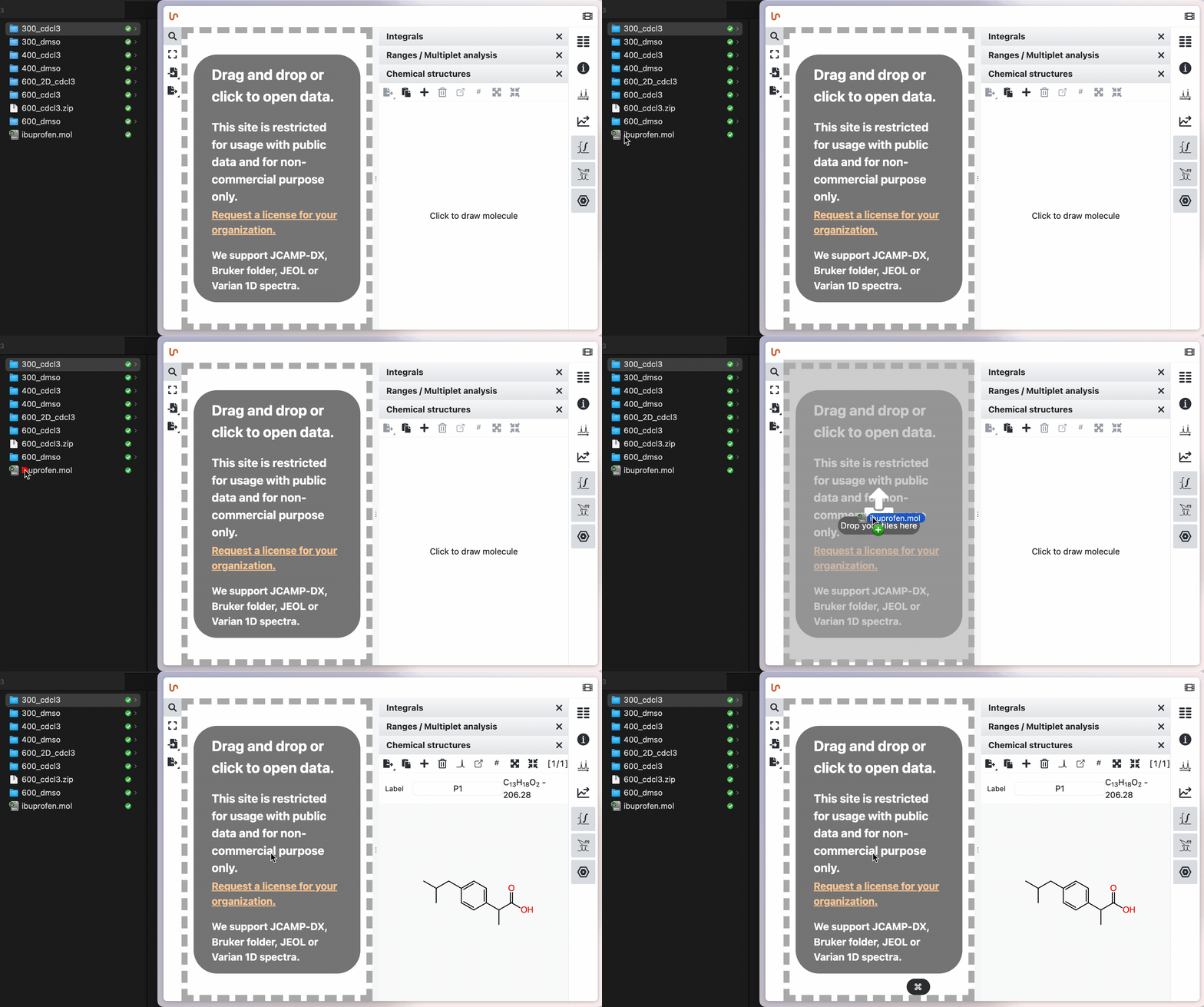
Drag and drop a molfile
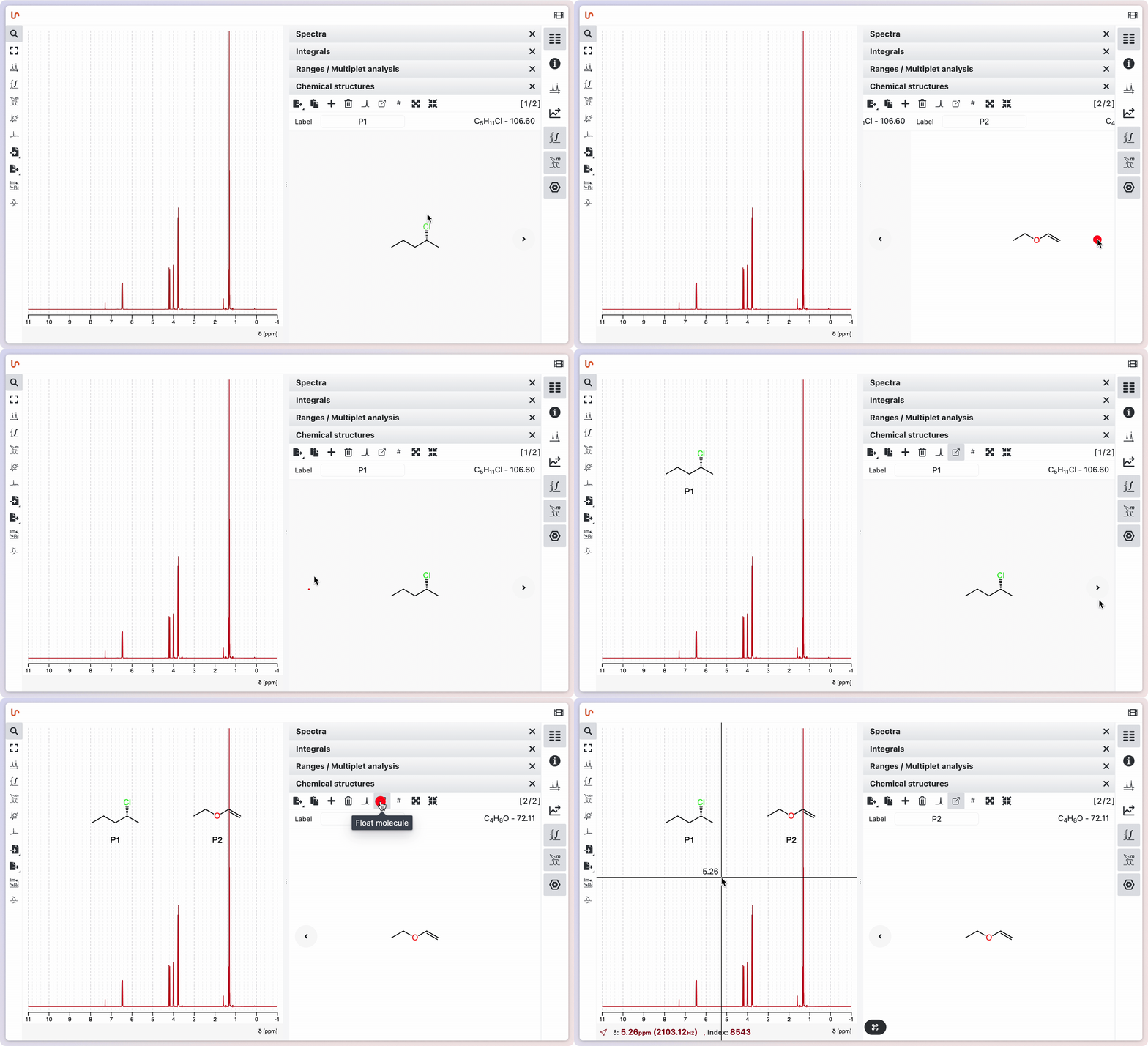
To import the structure, save it as a molfile and drag and drop the file into the workspace. The molecular structure, molecular formula, and molecular mass appear in the Chemical structures panel.
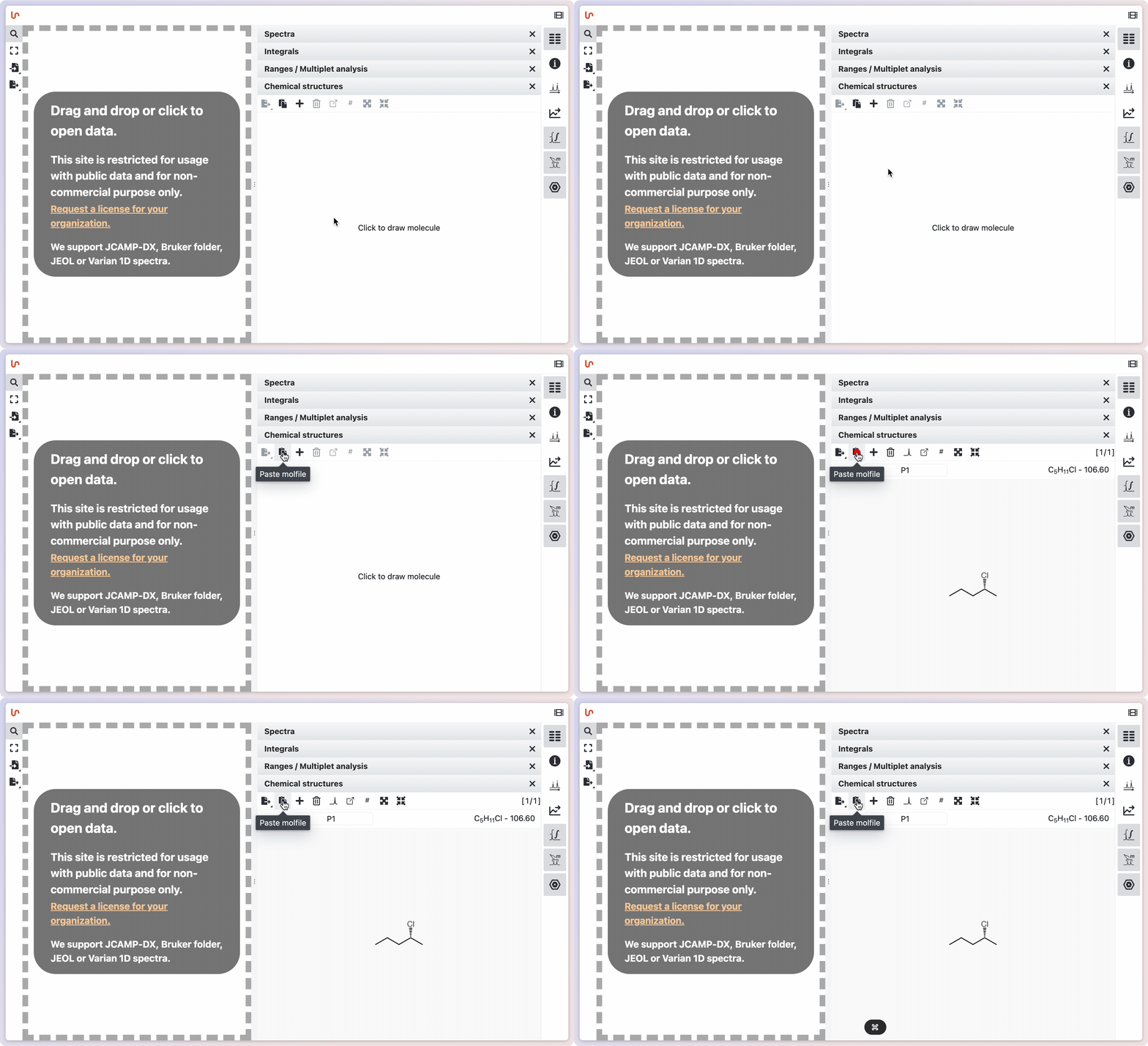
Paste a molfile or a SMILES
You can paste a molfile or SMILES string directly into NMRium. Most major chemical drawing programs, such as ChemDraw, allow you to copy a structure as a molfile (for example, use "Copy As > Molfile" in ChemDraw). Simply copy the structure from your software and paste it by clicking on the corresponding icon.
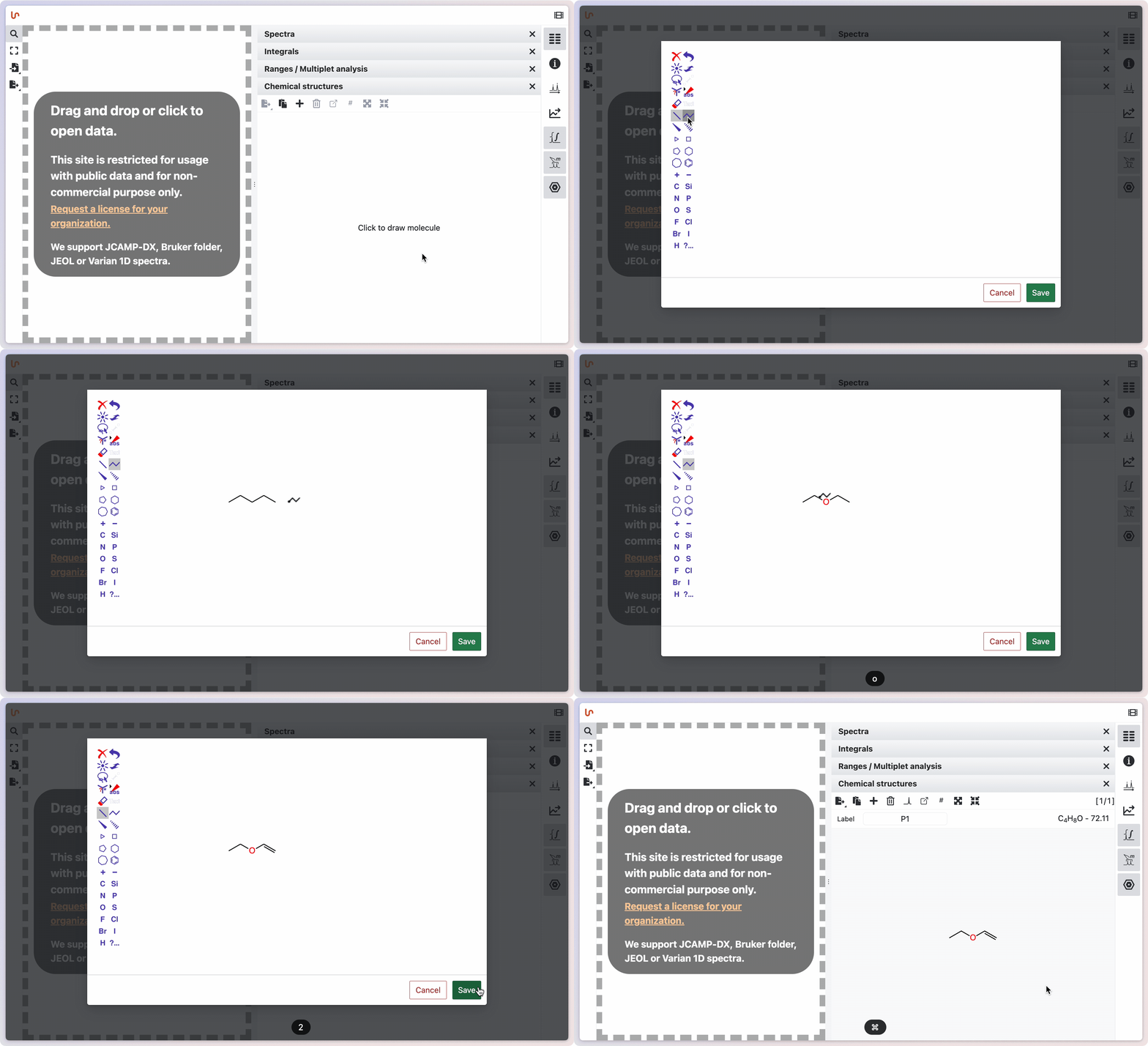
Edit the structure directly in NMRium
To edit an existing molecule, click on the molecule you want to modify. To create a new molecule, click in the empty space within the panel. A new window will open, allowing you to draw the molecular structure using the built-in editor. For detailed instructions on using the structure editor, refer to the "OCL Structure Editor" chapter. After drawing the molecule, click Save. The structure, along with its molecular formula and molecular mass, will appear in the Chemical structures panel.
Once added, NMRium will calculate the molecular weight as well as the molecular formula. You can also edit the caption that will be displayed under the structure.
Many chemical structures
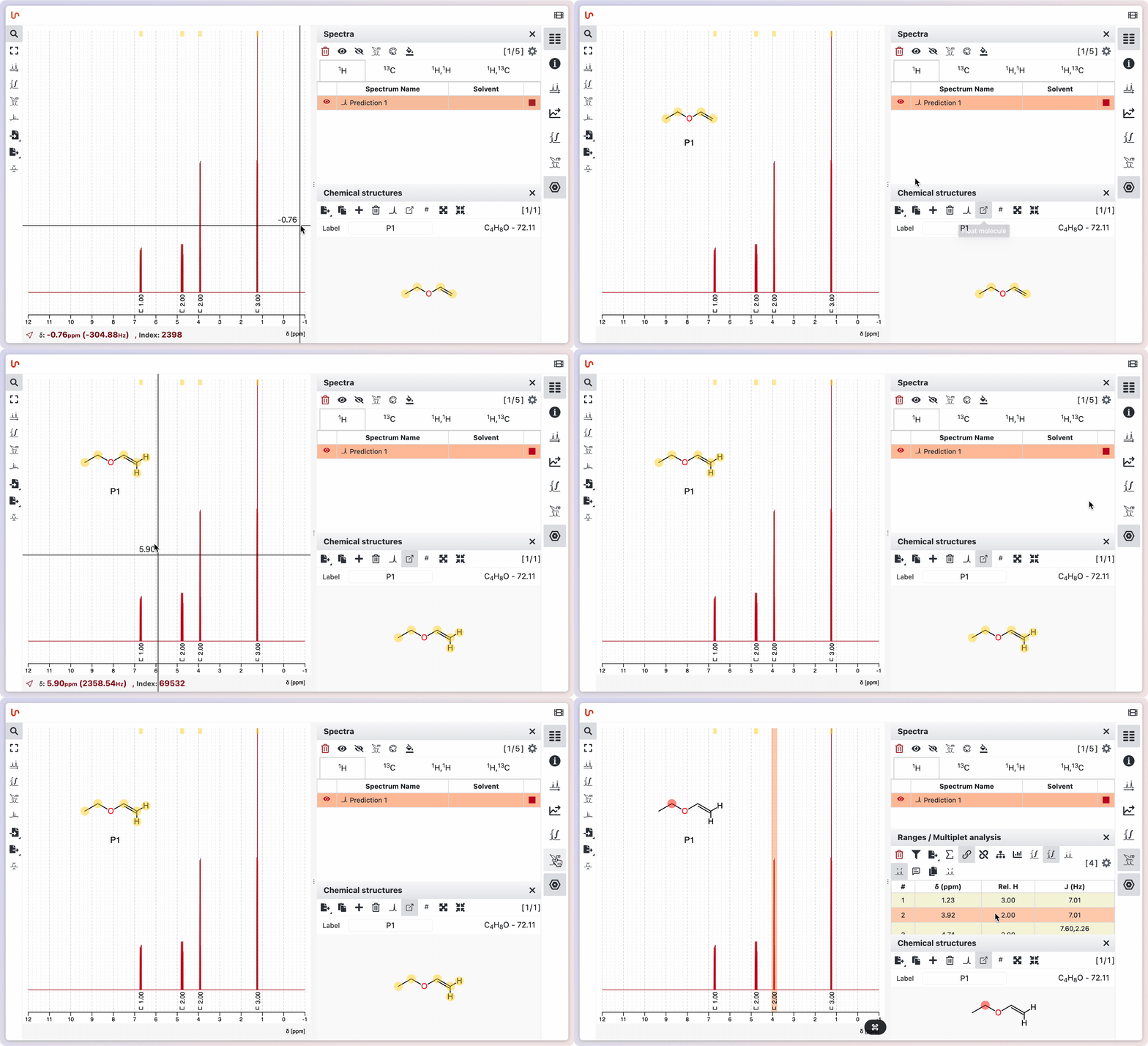
NMRium allows you to manage multiple molecular structures within a single dataset. You can switch between different molecules using the arrow buttons located above the Chemical structures panel. Each molecule can be given a custom label for easy identification. Additionally, molecules can be set to "float" over the spectrum, making it easier to visually assign signals, especially when dealing with minor products or mixtures. This floating feature helps facilitate the assignment process by allowing you to overlay and compare structures directly with the spectral data.
Predict spectra
It is possible to predict NMR spectra for a given molecular structure. To do this, draw a molecular structure or insert a molfile. Then click the Predict spectra button in the Chemical structures panel.
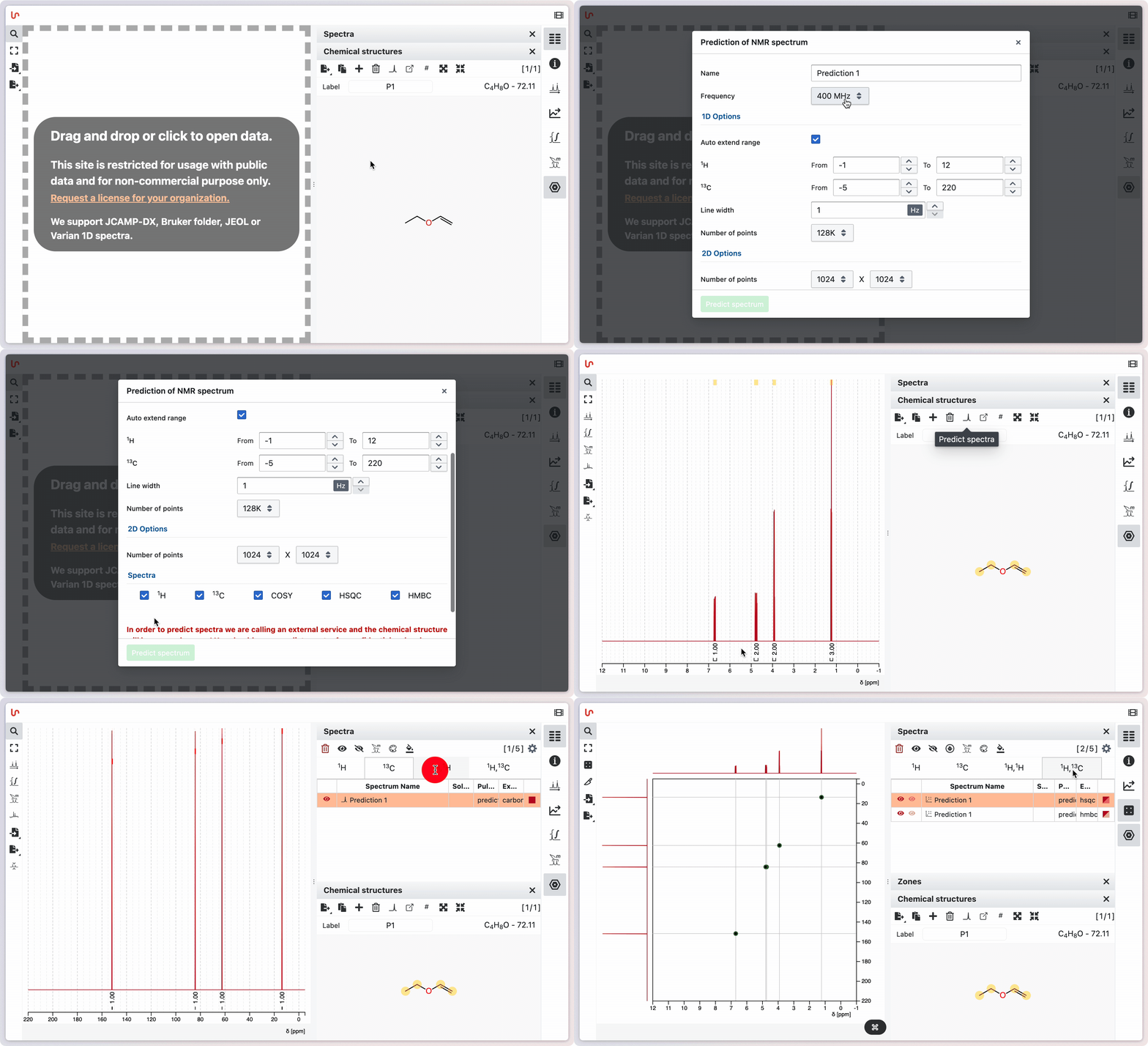
A window opens in which you can select the following settings:
- the frequency of the spectrometer
- the measuring range for both 1H and 13C in ppm
- the type of spectra to be predicted (1H, 13C, COSY, HSQC or HMBC)
You also need to specify the line width in Hz and the number of points. Before the spectrum is predicted, you must acknowledge that the predicted spectra are not confidential by ticking the corresponding box. Then click Predict spectrum.
The predicted spectrum is displayed in the workspace. You can hide it from the Spectra panel by clicking the corresponding button, and show it again the same way.
You can analyze the predicted spectrum in the same way as a measured spectrum. A proposed assignment appears in the Ranges panel, and hovering highlights the atoms and corresponding ranges.