Loading a Spectrum
Spectra can be loaded either by drag and drop or by opening a file from the file system (Ctrl+o).

Supported file formats
The following formats are currently supported:
| Format | Extension |
|---|---|
| JCAMP-DX | .jdx, .dx, .jcamp |
| Bruker files | |
| Jeol files | .jdf |
| Varian | |
| molfile | .mol |
| NMRium archive | .nmrium.zip |
Drag the file you want to open into the grey box Drag and drop here in the middle of the screen. You can open a set of spectra of a molecule by either dragging the spectra individually or by dragging a folder containing all spectra into the workspace. .zip or .gz files will automatically be decompressed and loaded.

You can load a spectrum by clicking the button Import on the toolbar on the left side of the workspace. Then click Import from file system. The folder will open. Search for the file you want to open and click on it. Then click the button Open. The files will be opened.
Autoprocessing
By default, NMRium keeps all 1D and 2D spectra. If both the FID and the post-FT spectrum are available, NMRium loads the post-FT spectrum by default. This can be changed in the general preferences.
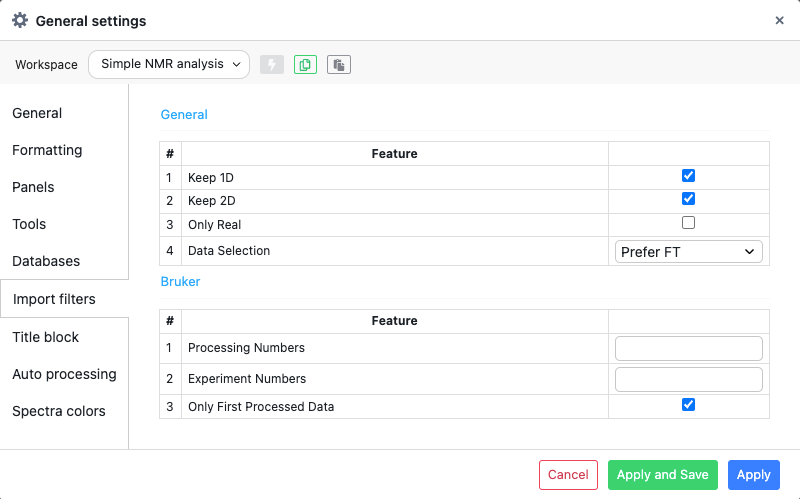
If the spectrum is an FID and auto-processing is enabled in the General Preferences, NMRium attempts to process the FID.

For 1D spectra, this involves:
- Apodization
- Zero filling
- Fourier transform
- Phase correction

When loading an FID, sometimes processing parameters are available. For instance, in the case of a Bruker experiment,
a pdata folder may be available, but the 1r and 1i files may not be. NMRium will, in this case, try to extract
PH0 and PH1. If those values are not available or both equal to 0, automatic phase correction will be applied. Otherwise, the stored values will be applied.