Baseline Correction
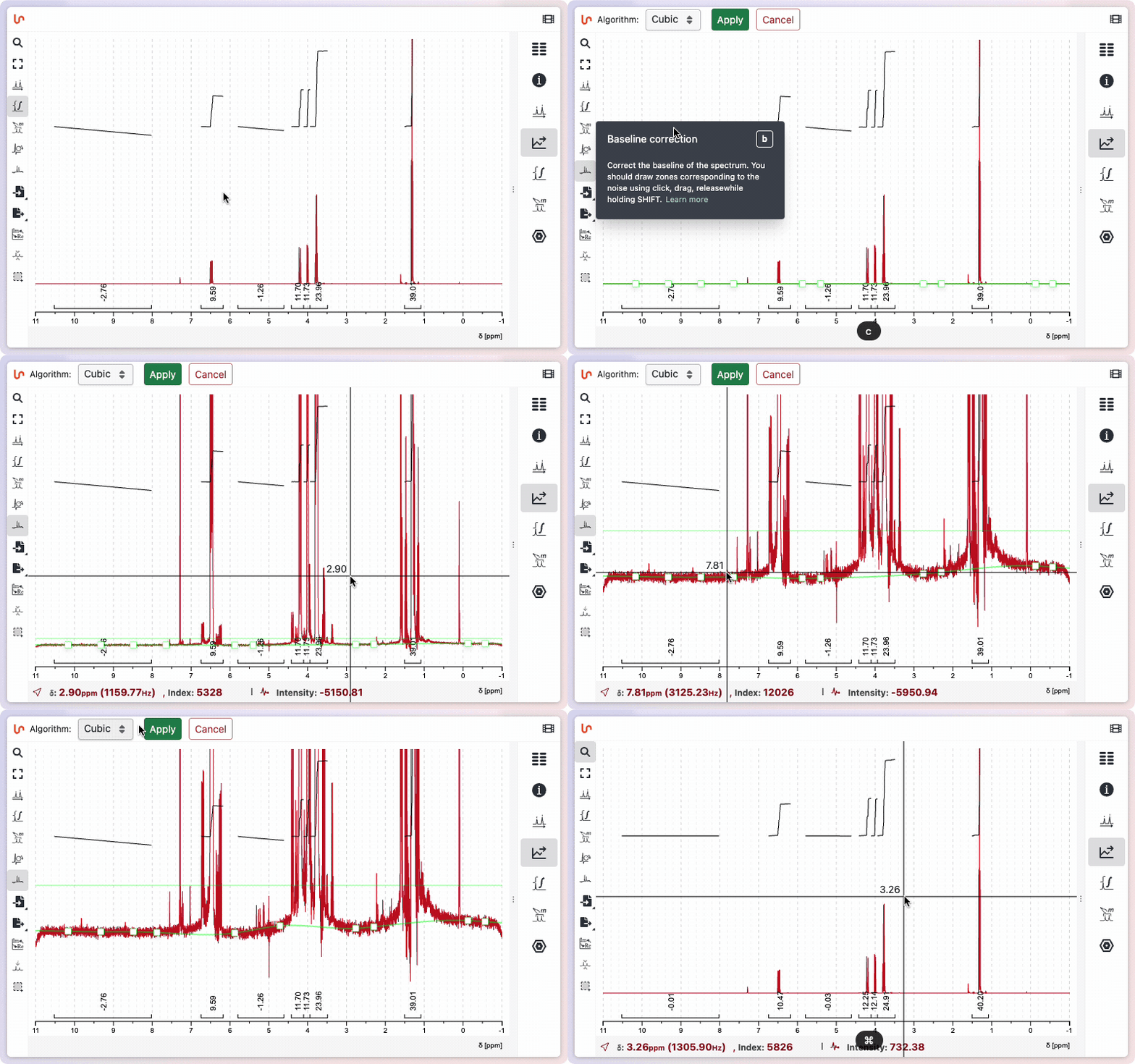
Click the Baseline correction button to the left of the spectrum to enter baseline correction mode. Select one of five algorithms from the Algorithm dropdown, then place anchor points to define the noise regions before clicking Apply.
Algorithms
| Algorithm | Description |
|---|---|
| Cubic (default) | Cubic spline through the anchor points |
| Polynomial | Polynomial fit through the anchor points |
| Whittaker | Whittaker smoother-based correction |
| Bernstein | Bernstein polynomial fit |
| airPLS | Adaptive iterative reweighted penalized least squares |
Anchor points
Anchor points mark regions of the spectrum that contain only noise (i.e. no signal). The algorithm uses them to estimate the baseline.
| Action | How |
|---|---|
| Add an anchor point | Click anywhere on the spectrum |
| Move an anchor point | Click and drag it |
| Delete an anchor point | Hover over it, then press Backspace |
Place anchor points in flat, signal-free regions distributed across the spectral width to get an accurate baseline estimate.
Centering the view
When you scale the spectrum vertically to inspect fine baseline details, press c to center the spectrum around zero. This makes it easy to see both the target zero level and the current estimated baseline together.
Applying the correction
Once your anchor points are placed, click Apply to subtract the estimated baseline from the spectrum. Click Cancel to exit without making changes.