Phase Correction
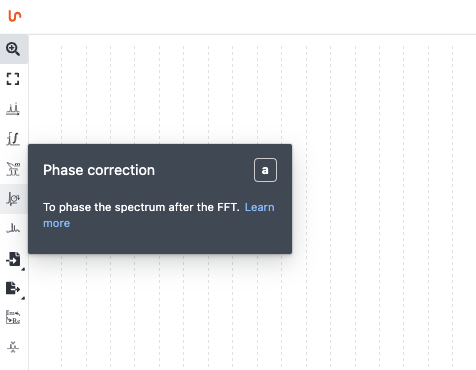
Click the Phase correction icon to the left of the spectrum. You can choose between manual, absolute, and automatic phase correction.
Manual
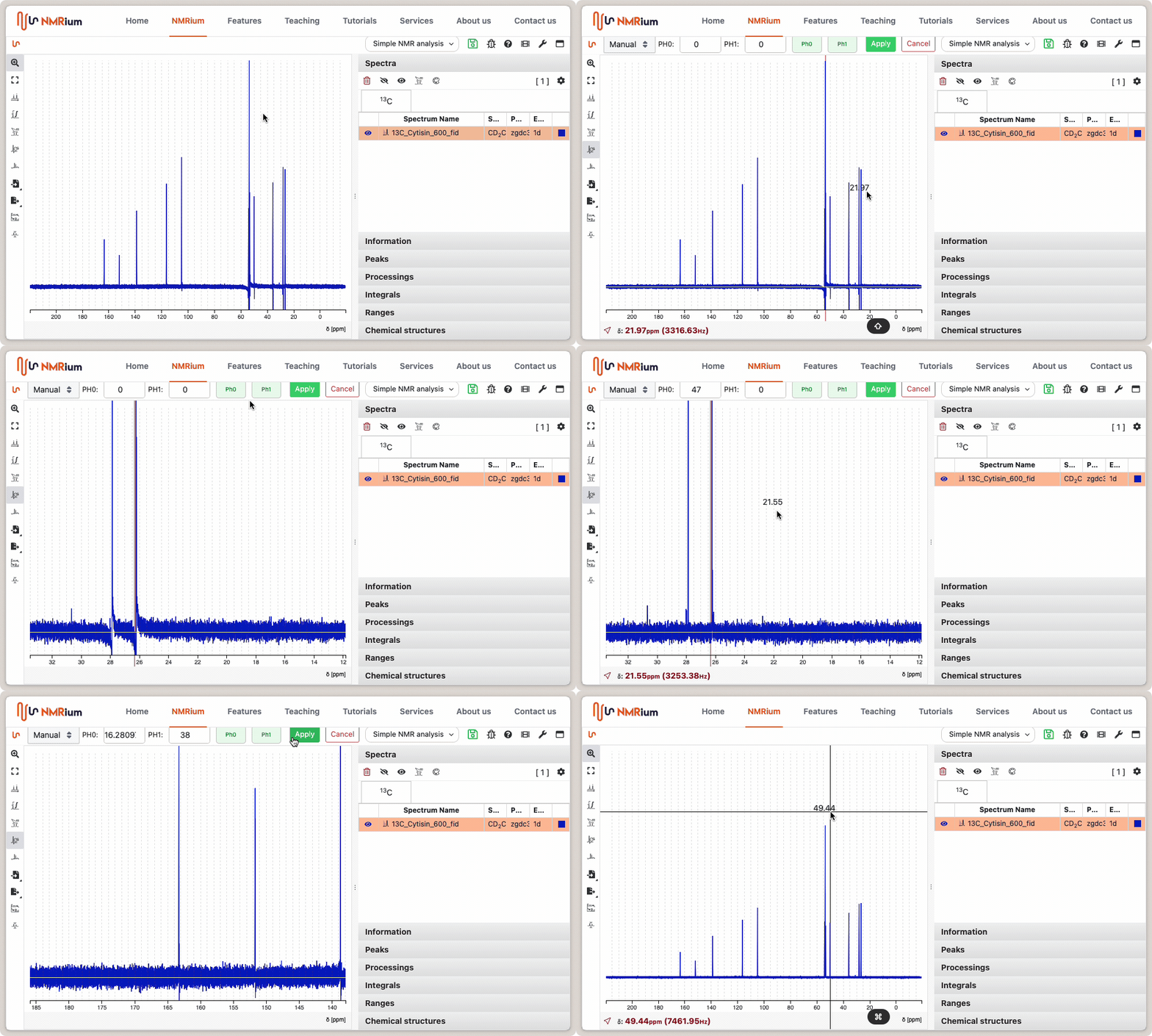
You can perform zero-order and first-order phase correction.
Start by selecting a pivot point (red line) — hold Shift and click on a peak. Usually you pick a large peak at one extremity of the spectrum.
For zero-order phase correction, click and hold the green PH0 button located above the spectrum. Move the mouse left or right until the signal at the pivot is correctly phased.
First-order phase correction works the same way via the PH1 button. Focus on the signals furthest from the pivot point.
Click Apply to complete the phase correction.
Automatic
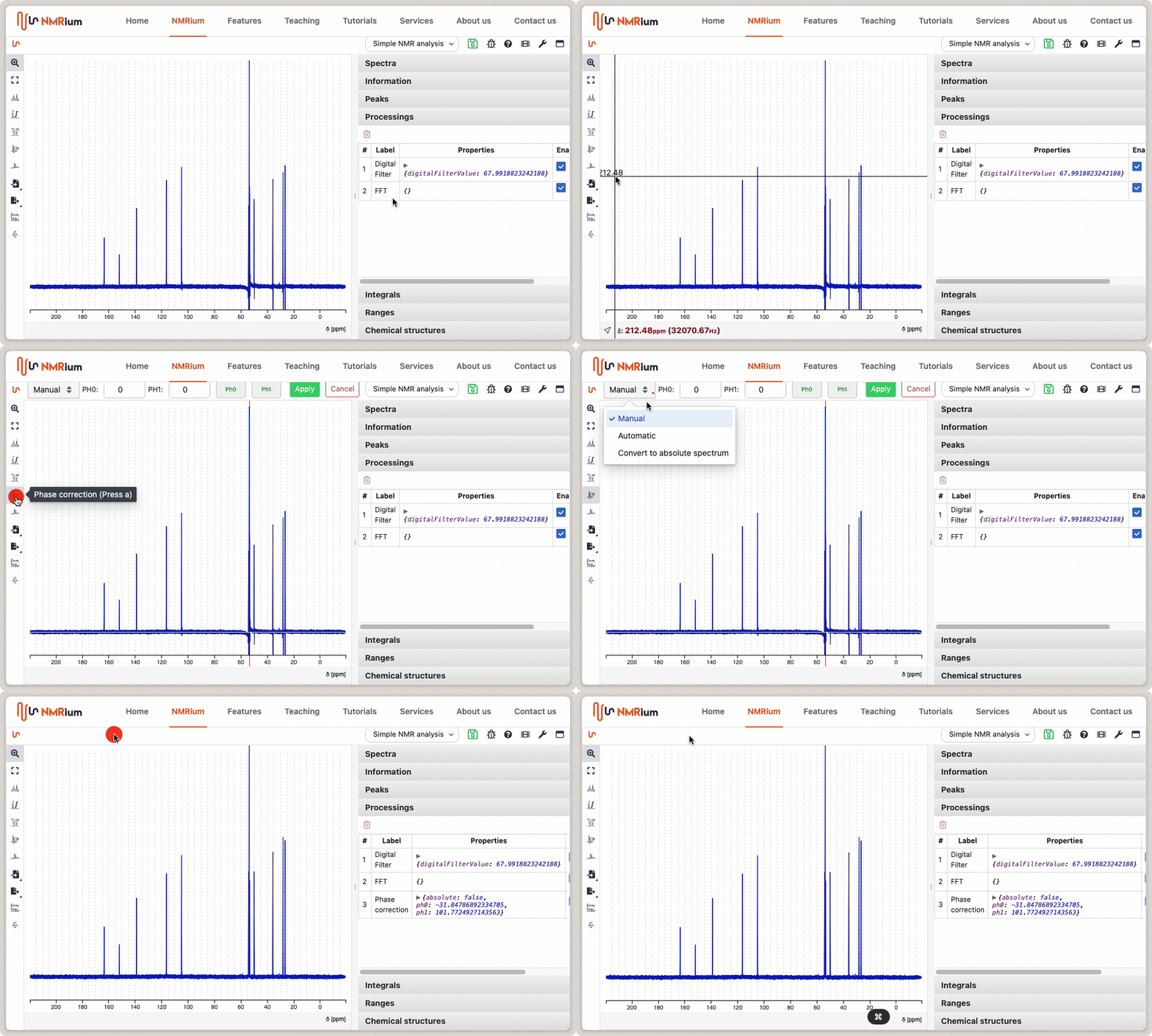
Select Automatic phase correction and click the green Apply button. The phase will be corrected automatically. If it fails, you can still correct it manually.
Absolute Value
Select the Absolute Phase Correction and click the green Apply button.